Login and Onboarding

Before you can use any of WhitePanther’s productivity features, you need to sign up and create your workspace.  

This section guides you through creating an account, selecting a provider, inviting teammates and setting your preferred appearance.  

After these steps, you’ll land on a dashboard where all other features await. 

1.1 Creating an Account 
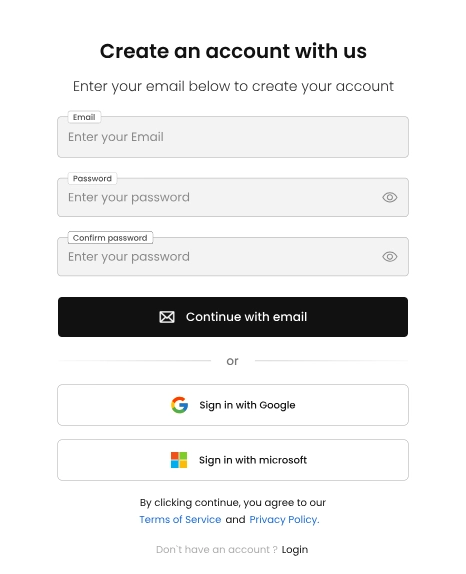
  1. Navigate to the White Panther sign‑up page. You’ll see a form titled “Create an account with us.”
  2. Enter your email address in the “Email” field.
  3. Type a secure password in the “Password” box and re‑enter it in “Confirm password.”
  4. Click Continue with email to register. By doing so, you agree to White Panther’s Terms of Service and Privacy Policy. If you are using email for signup, you will be prompted for OAuth login to sync your email, calendar and storage with WhitePanther.
  5. Prefer using your existing credentials? Choose “Sign in with Google” or “Sign in with Microsoft” instead. These single‑sign‑on options connect your White Panther workspace to your Google or Outlook mail and calendar automatically. 

If you already have an account, click “Login” at the bottom of the sign‑up page to return to the sign‑in screen. 

1.2 Pick Username and Login 
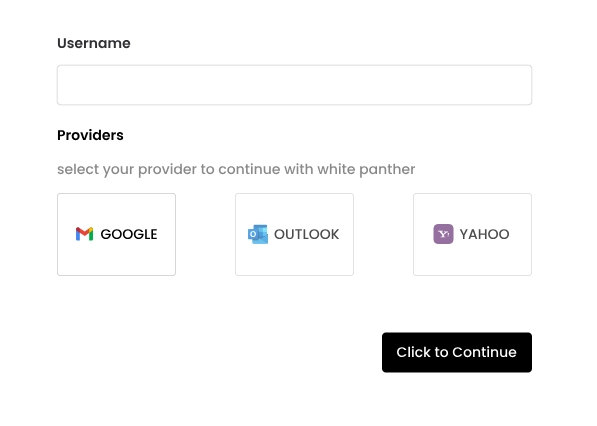
  1. After the welcome screen, you have to pick a username.

  2. Type your desired username into the “Username” field.
  3. Click to Continue to proceed.

1.3 Creating Your Workspace 

  1. On the Create a new Workspace page, enter a unique name in the “Workspace Name” field.
  2. White Panther automatically suggests a URL prefix. Edit the “Workspace URL” if you want to customize it (e.g., whitepanther.email/yourworkspace).

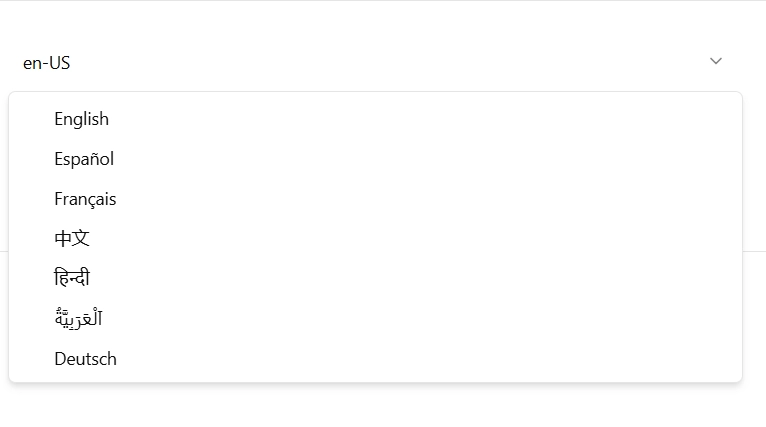
  3. Choose language of your choice and click on Submit. Your new workspace is created, and you’re taken to the next step.

1.4 Inviting Team Members 

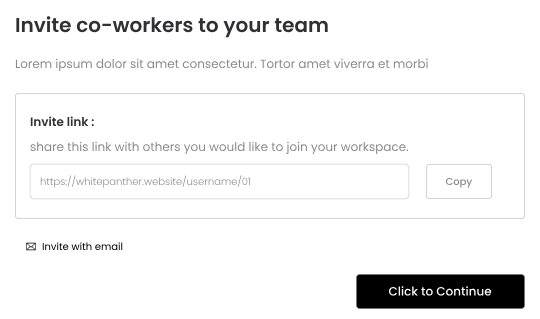
  1. You’ll now see the Invite co‑workers to your team screen. White Panther provides a unique Invite link; copy it using the Copy button and share it with colleagues you want to join your workspace.

  2. To invite directly by email, select Invite with email and enter the recipient’s address.
  3. If you aren’t ready to invite anyone yet, click Skip.
  4. Click to Continue to move on. 

1.5 Choosing Your Style 

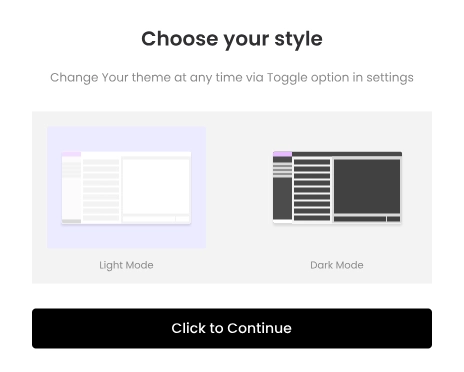
  1. White Panther lets you set your display theme immediately. The Choose your style screen shows Light Mode on the left and Dark Mode on the right.

  2. Select your preferred look by clicking on the corresponding image. You can change themes later via the toggle in Settings.
  3. Click to Continue. 

1.6 Landing on the Dashboard 

Once you complete these steps, White Panther opens to a chat‑like home interface. On the left navigation panel, you’ll see buttons for all White Panther’s features: Mail Drafting, Teams, Calendar, Storage, Marketing, Collaboration, Payments, Capture and Time Tracker.  

Email Drafting

Email Drafting helps you write and send messages directly through your connected email account (Gmail or Outlook). You can compose messages, generate content with AI, and save reusable templates.
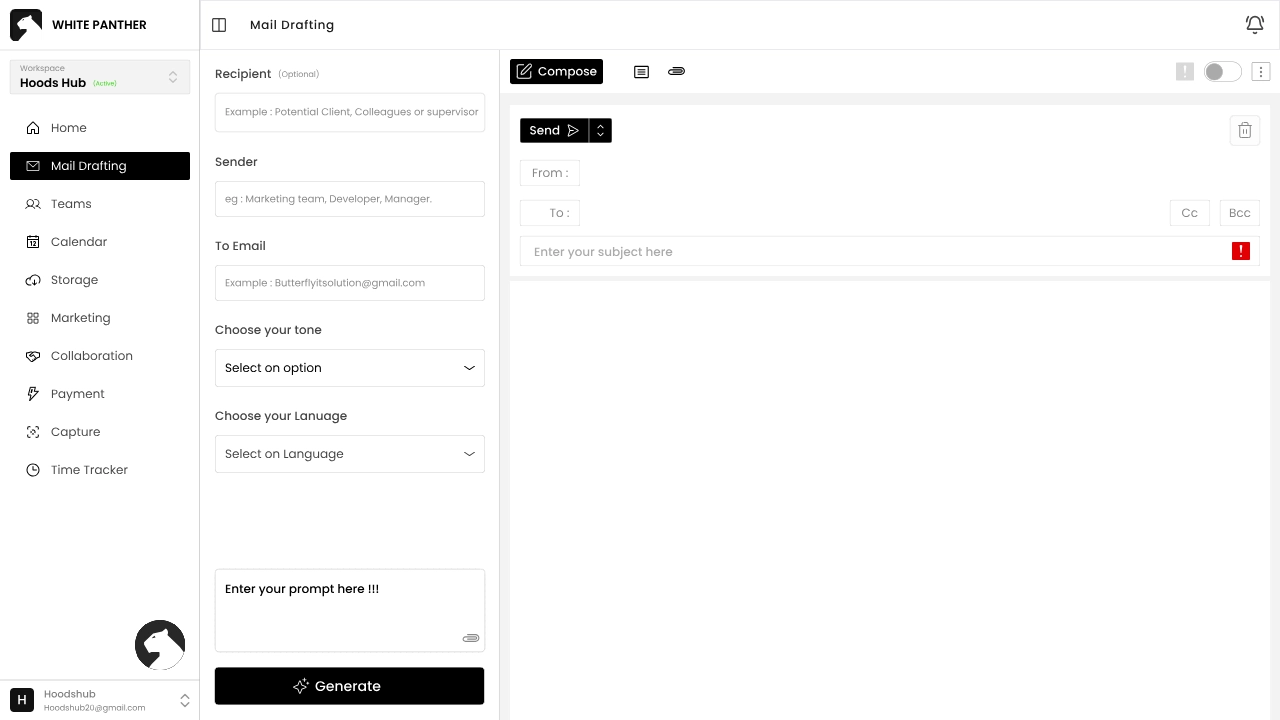
2.1 Composing an Email 

  1. Click “Mail Drafting” in the left‑hand menu.
     
  1. To begin a new email, click the Compose button.
     
  1. Fill in the “From”“To”Cc and Bcc fields and type your subject in the “Enter your subject here” box.
     
  1. Under “Choose your tone”, select a tone that best matches your message (e.g., Friendly, Professional).
     
  1. Use “Choose your Language” to set your preferred language.
     
  1. In the message body, either type your content or click Generate to have White Panther’s AI draft an email for you.
     
  2. Add attachments using the paper‑clip icon, or you can send attachment as links and choose Send or Schedule send when ready.
     

2.2 Using and Creating Templates“ 

White Panther includes a template system to save time with repeated emails.
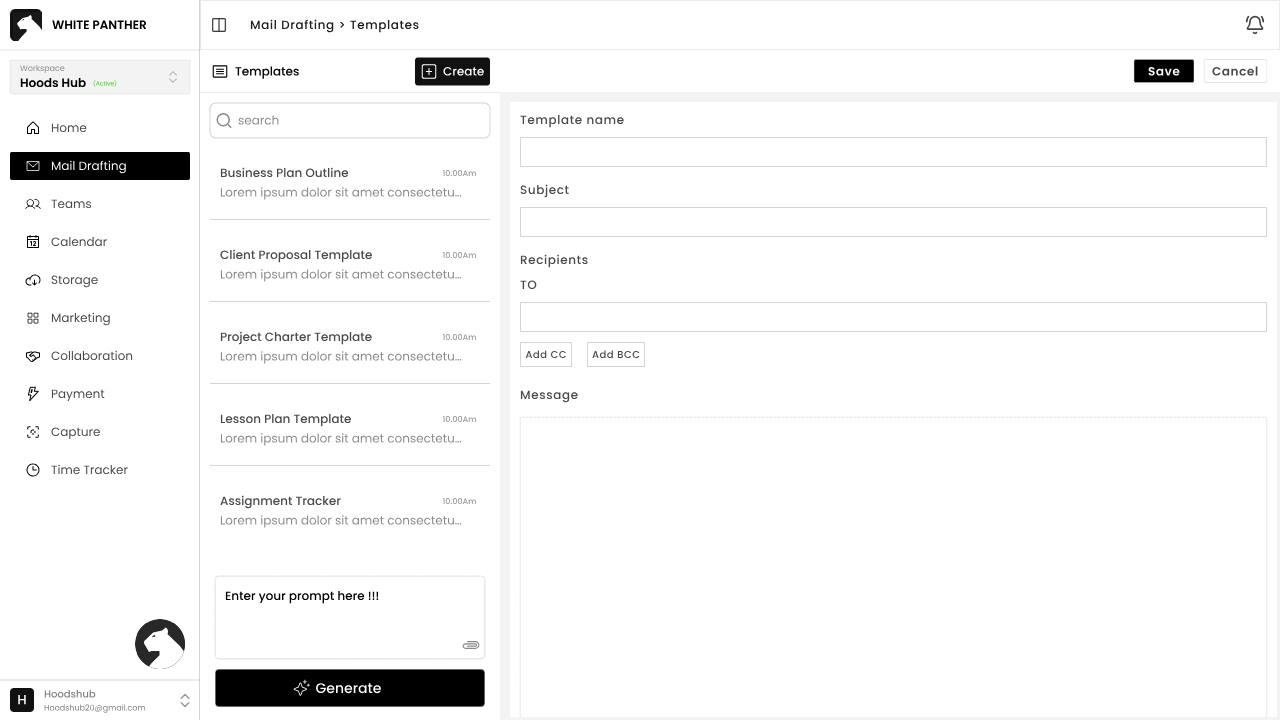
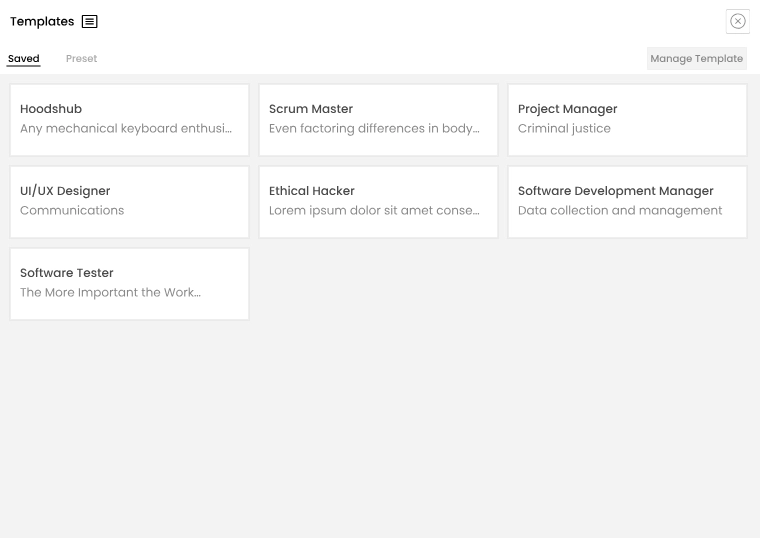
  1. On the Mail Drafting page, click the Templates button (beside Compose).<
  2. To create a new template:
     1. Click the Create button.
    2. Enter a Template nameSubjectRecipients and write your Message.
    3. Click Save. Your new template appears in the Saved section.
  3. When drafting an email, you can select a template from the dropdown to pre‑fill the subject and body.

Teams

The Teams module lets you manage your organization’s members, create teams and chat with colleagues. 

3.1 Viewing Users and Teams 
  1. Click “Teams” in the left navigation. 
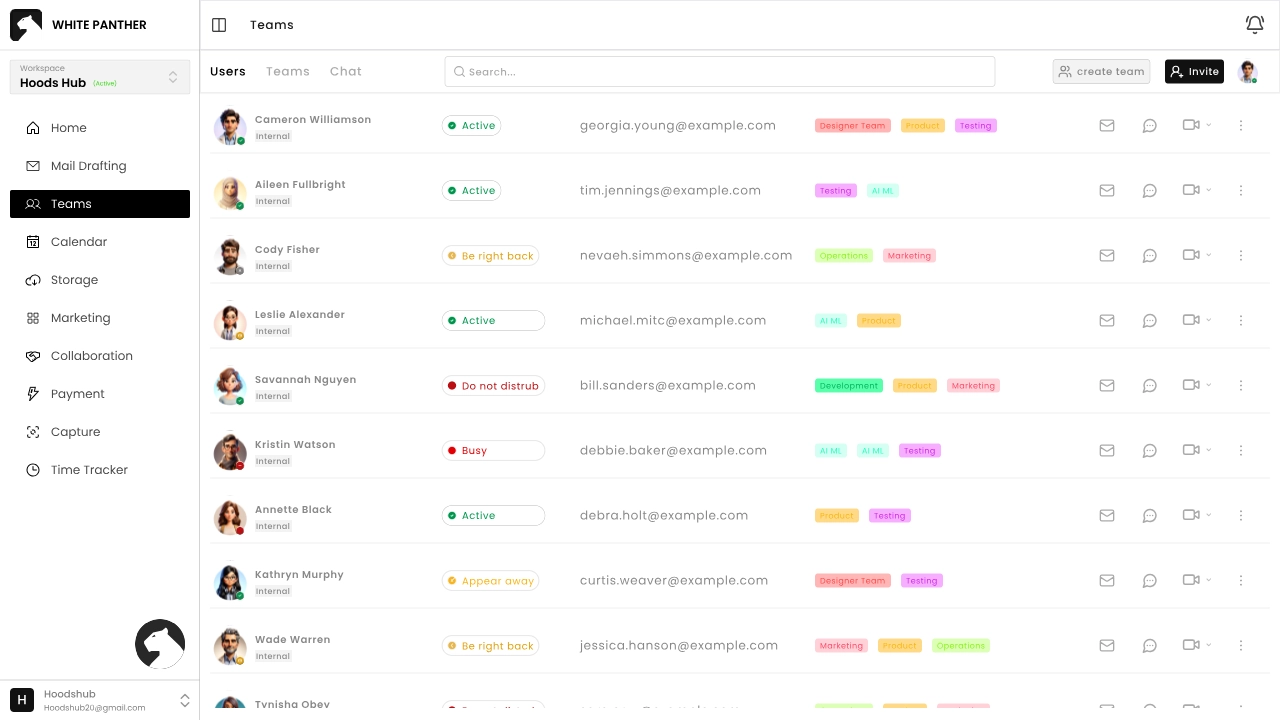
  2. Three tabs appear: UsersTeams and Chat.

  3. Under Users you see a list of employees with status indicators (Active, On leave, etc.), their email addresses and color tags are a name of teams they are member of.

3.2 Inviting New Members 

  1. In the Users tab, click Invite (top‑right).
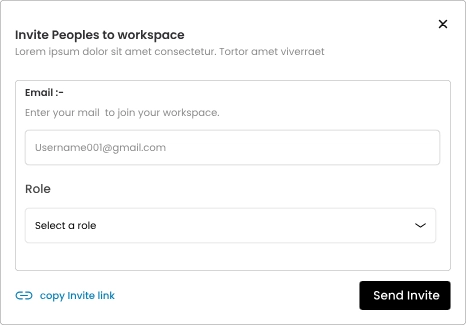
  2. In the Invite People to Workspace window, enter the person’s email address.
  3. Select a role (Admin, Viewer, or another custom role) from the “Role” dropdown.
  4. If you don’t have the member’s email, click Copy invite link to share the invite manually.
  5. Click Send Invite. The new user will receive an invitation to join your workspace.

You can update a member’s role later by opening their user profile and choosing a different role. 

3.3 Creating Teams 

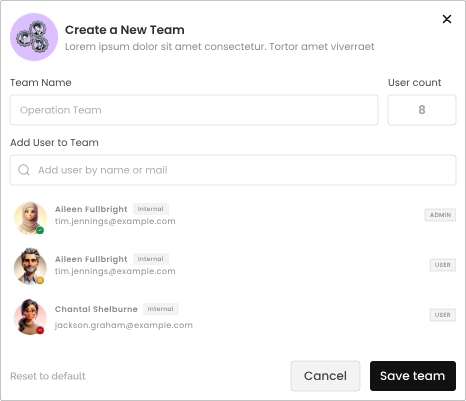
  1. Go to the Teams tab. You’ll see a list of existing teams and their members.
  2. Click Create team (top right).
  3. Give your team a name and add members by typing their names or email addresses. 
  4. Click Save Team. The team is now listed under Teams and accessible to all members. 

You can view or edit a team’s details by selecting it in the list. 

3.4 Team Chat 
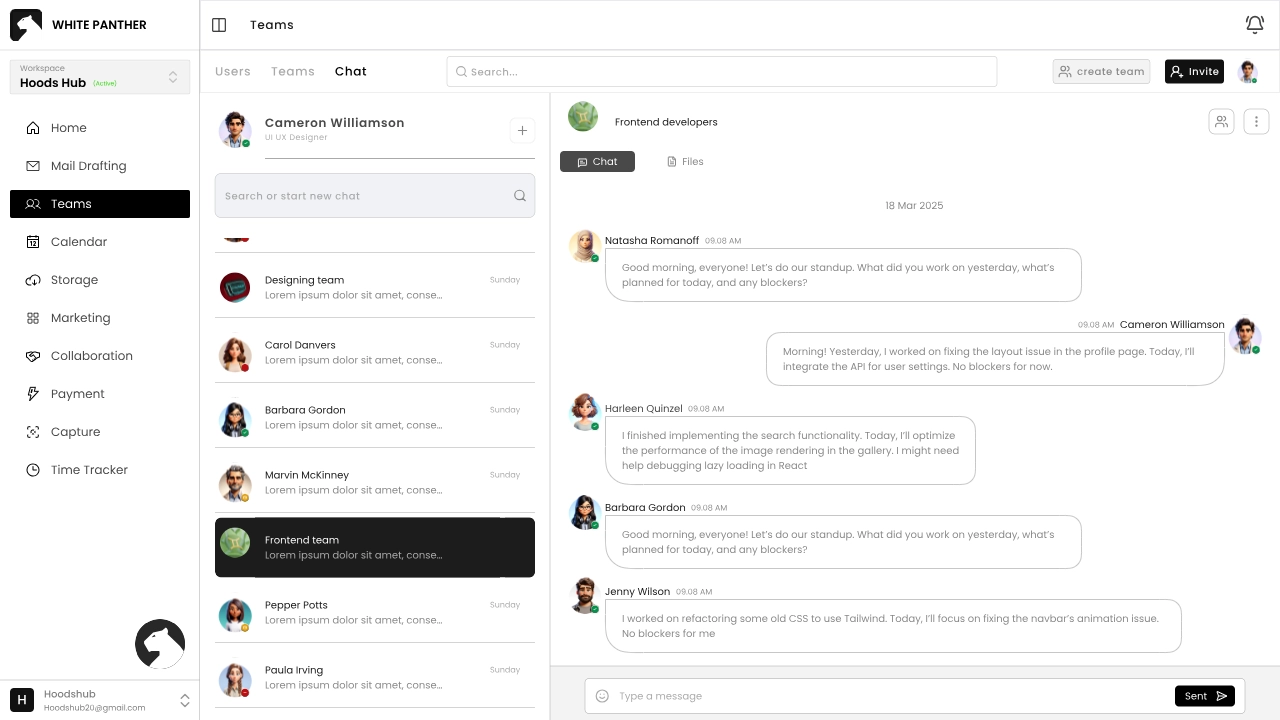
  1. Select the Chat tab within Teams.
  2. Choose from the list to open its chat channel.
  3. Type messages in the text box at the bottom and press Enter to send.

Calendar

The Calendar feature integrates with your Google and Outlook calendars so you can manage your schedule without leaving White Panther.

4.1 Connecting Calendars 

  • If you signed in with Google, your Google calendar is connected automatically.
  • To add Outlook or additional accounts, click “Calendar” and follow the on‑screen prompts to authenticate with OAuth. 

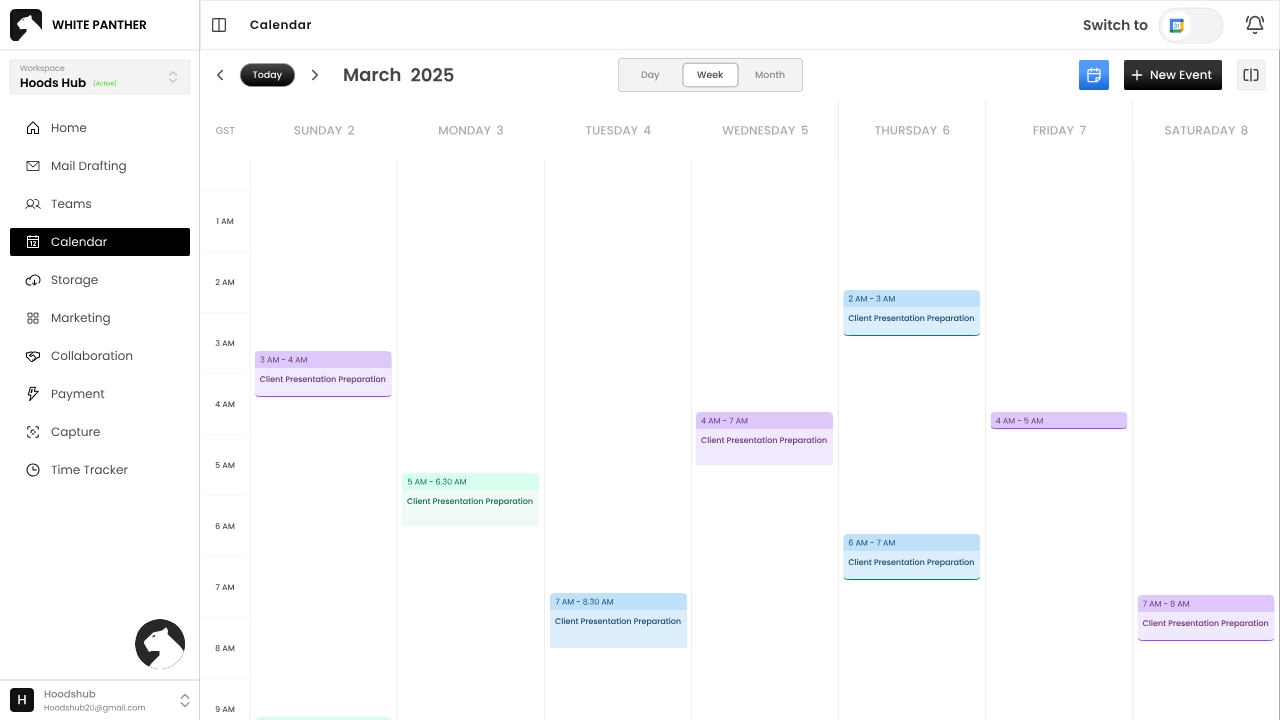
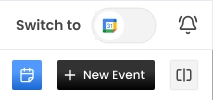
Use the switch toggle in the upper‑right corner to switch between Google and Outlook calendars.
4.2 Viewing Your Schedule 
  1. Click “Calendar” from the navigation menu.
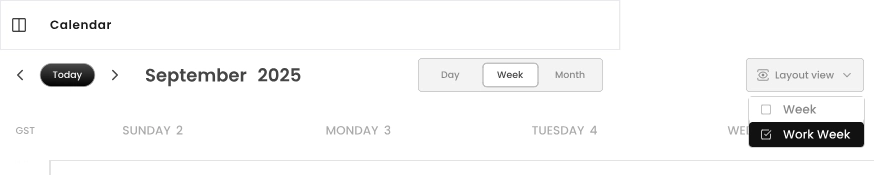
  2. Use the DayWeek or Month tabs above the calendar to change views.
  3. In Outlook view, you can choose Week (all seven days) or Work week (Monday–Friday)

4.3 Creating Events 

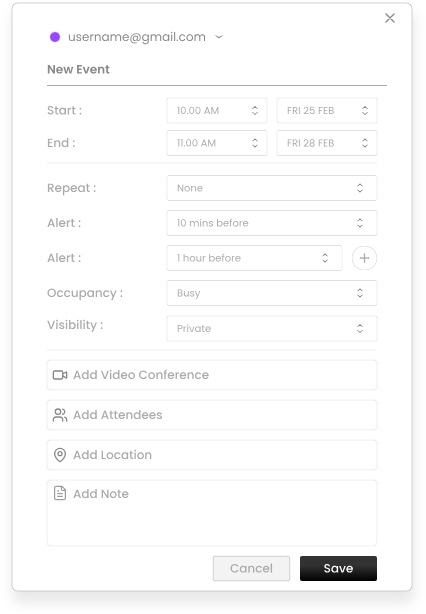
  1. Click New Event (top right).


  2. Enter a title, date, time and description.
  3. Choose whether the event repeats and invite attendees if needed.
  4. Click Save. The event appears in your calendar.
  5. To quickly review your day, click the blue calendar button next to New Event, which opens a summary of your schedule.

Storage

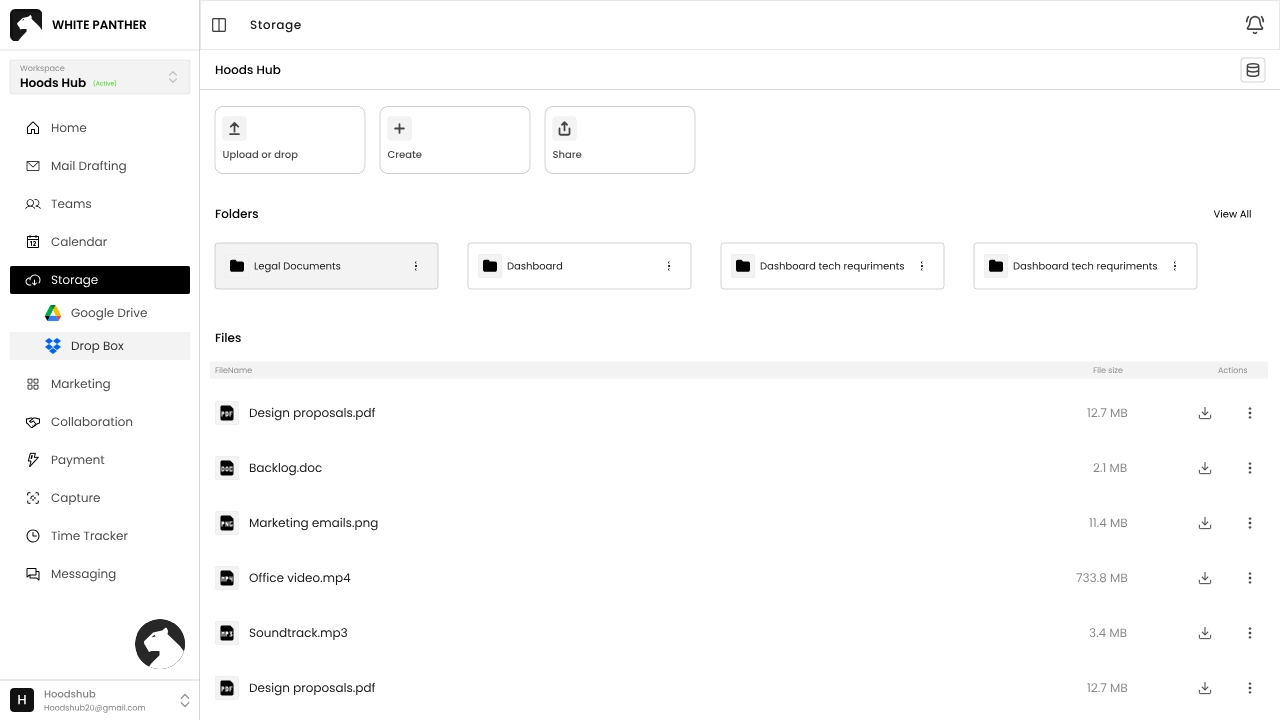
Storage consolidates your files from Google Drive and Dropbox directly inside White Panther. It supports uploading, creating folders and sharing documents. 

5.1 Connecting Storage Services 
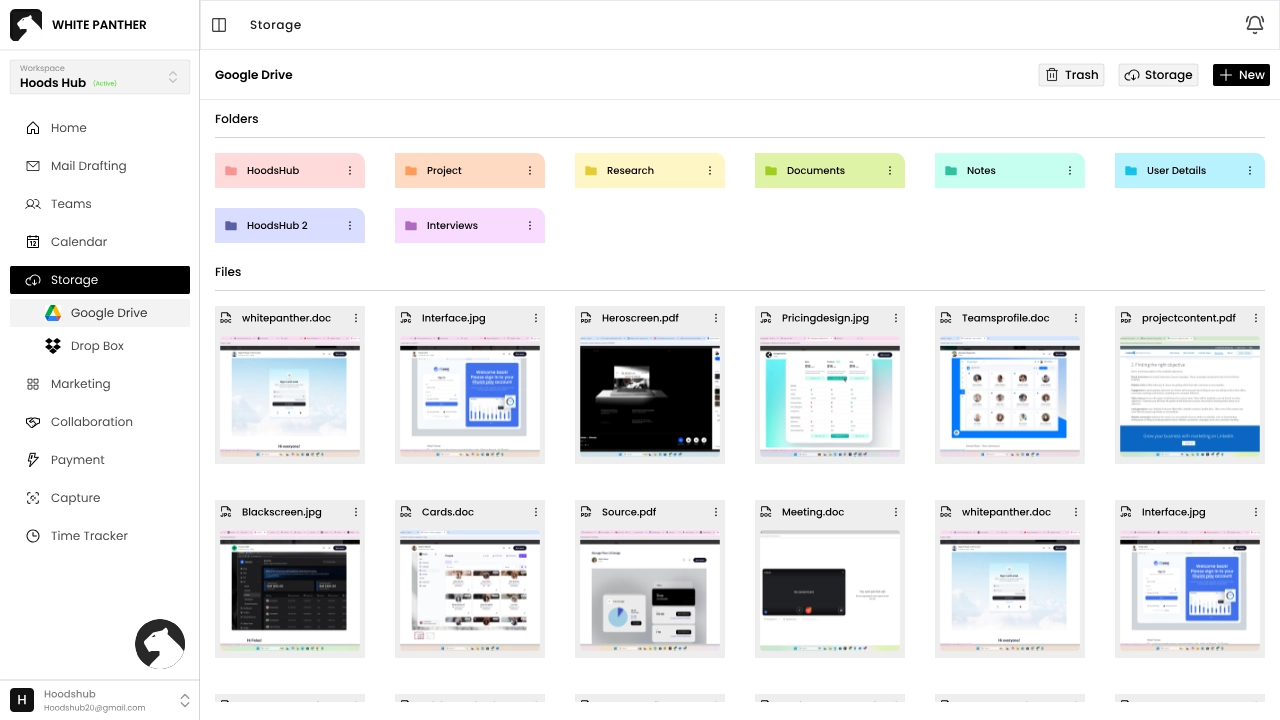
  • Files from Google Drive are automatically synced if you signed in with Google.
     
  • To connect Dropbox, go to “Storage” and click Log in. Follow the OAuth prompts to grant access.

5.2 Navigating Storage 

The Storage page is split into two sections: 

  • Folders – a row of colour‑coded tags helps you organise projects (e.g., Project, Research, Documents). Click a tag to filter.
  • Files – shows thumbnail previews of documents, images and other files. 

Use the Upload or drop area at the top to upload files from your computer. Clicking Create lets you add new folders. Select files and choose Share to generate a shareable link. 

5.3 Managing Files and Folders 

  1. To open a folder, click its name under Folders. Files in that folder appear below.
  2. Hover over a file to see actions:
    – View – open the file.
    – Download – save it locally.
    – Delete – remove it (with confirmation).
  3. You can rename items by selecting them and choosing Rename from the actions menu.
  4. To share, select the file(s) and click Share. Set permissions and copy the link to distribute. 

Marketing (Email Marketing)

White Panther’s Email marketing module help you send professional campaigns and manage contacts. 

6.1 Accessing Email Marketing 
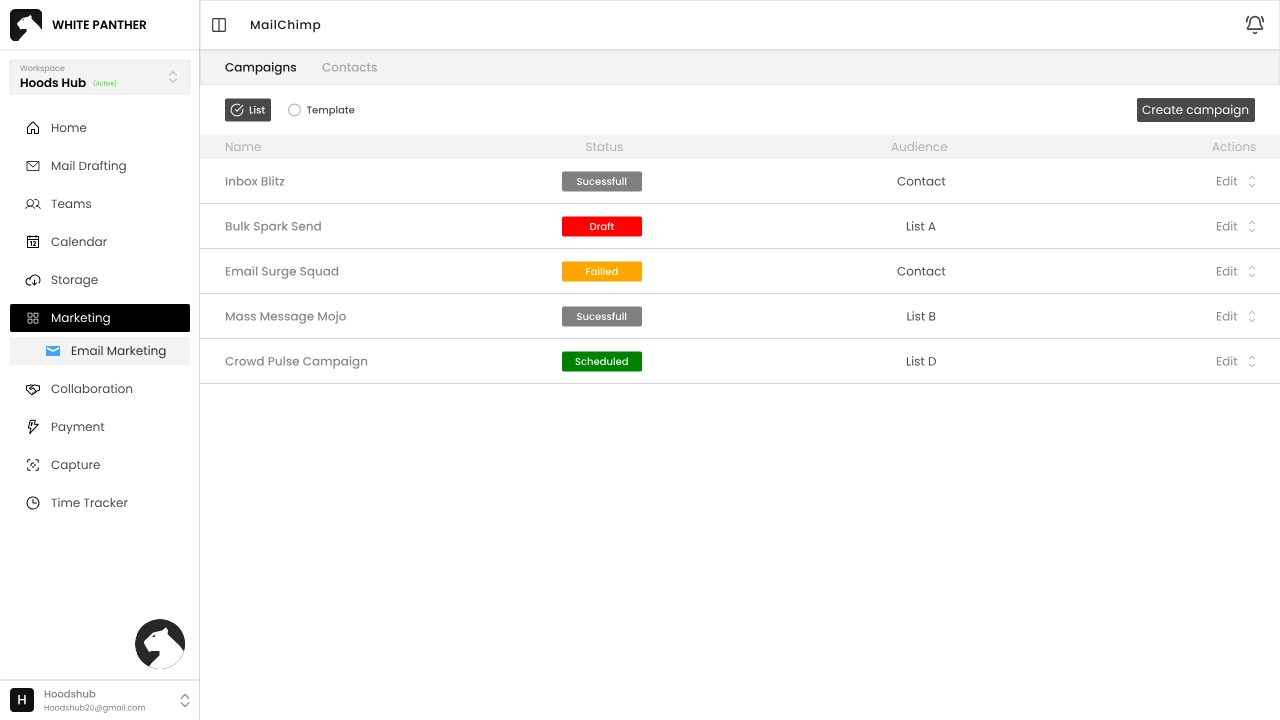
  1. Click “Marketing” in the sidebar and choose Email marketing.
  2. You’ll see two tabs: Campaigns and Contacts.

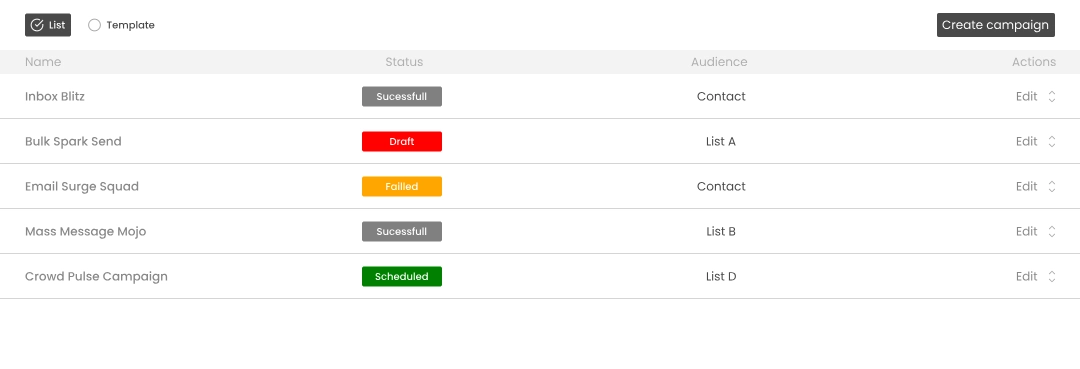
6.2 Working with Campaigns 

  • List View shows all your campaigns. Each row displays the campaign name, status (Draft, Sent or Scheduled) and audience. Click Edit to modify a campaign.
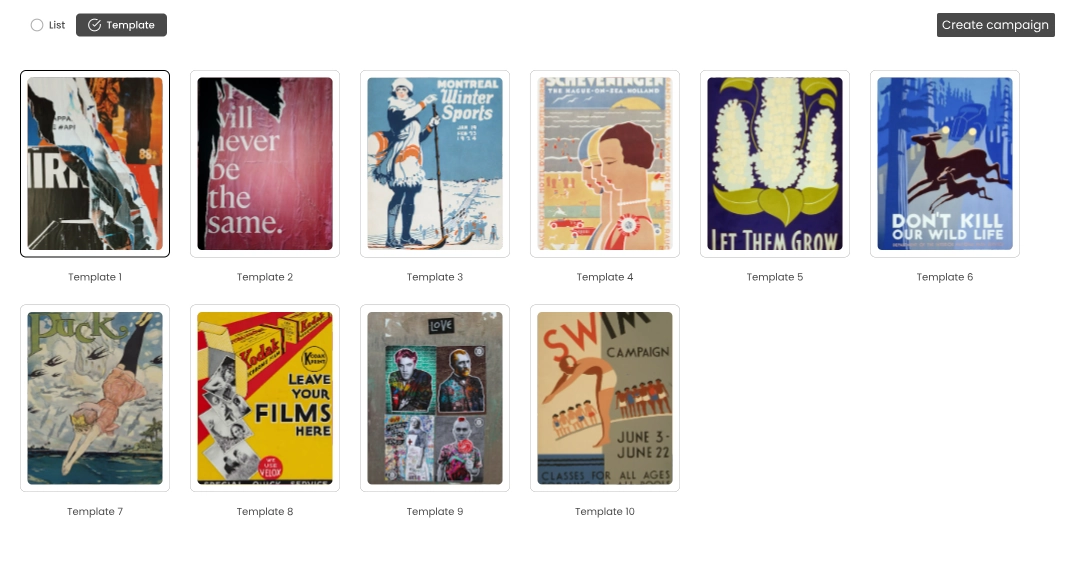
  • Templates provides a gallery of pre‑made designs. Selecting a template opens it in the editor.

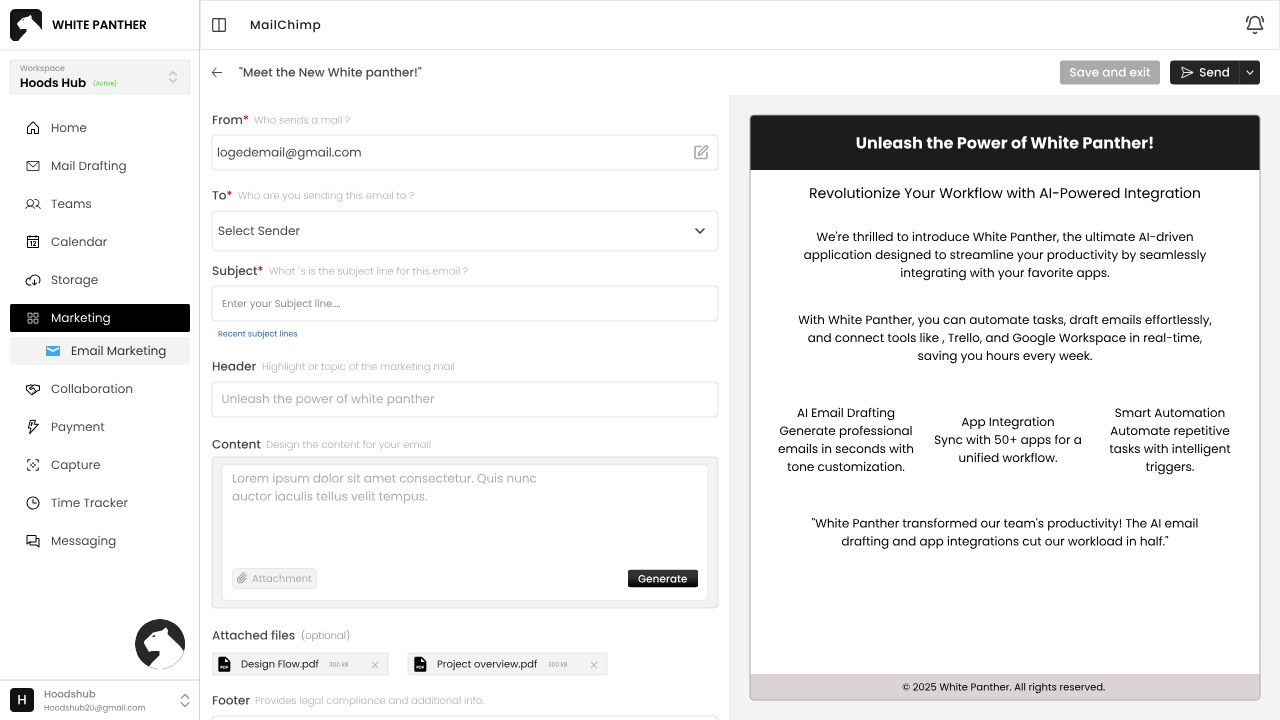
Creating a Campaign 

  1. Click Create campaign (top right).
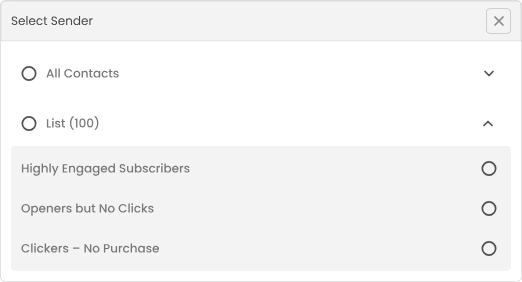
  2. Select an audience via the To field:
    – Choose All contacts to email everyone. OR
    – Select a List from your segmented lists to target a specific group.
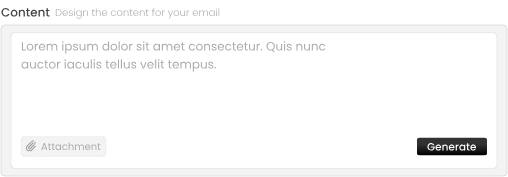
  3. Fill in the SubjectHeader and Content fields.
  4. To generate content using AI, enter a prompt in the Content box and click Generate. You can insert images, attachments, headers and footers to customise the email.
  5. Attach files if necessary using the Attach files button.
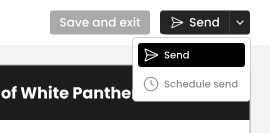
  6. When finished, click Send to deliver immediately or Schedule send to send later.


6.3 Managing Contacts 

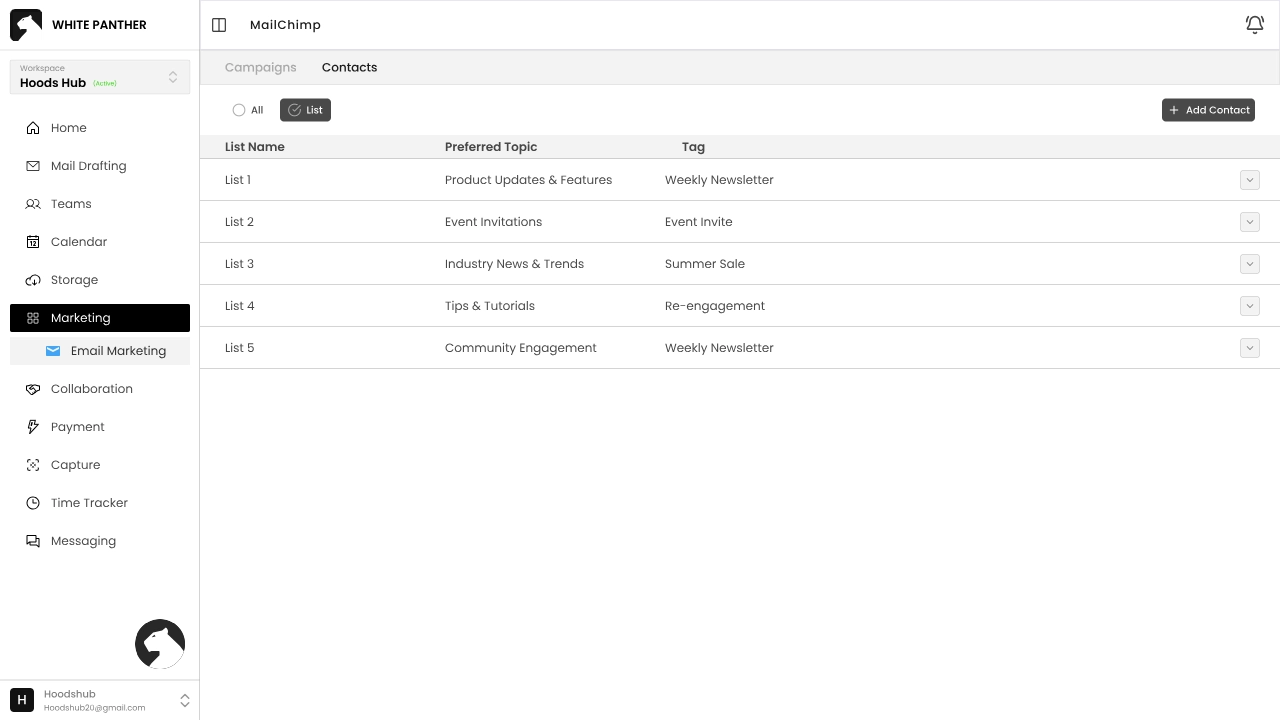
The Contacts tab includes two views: All and List. 
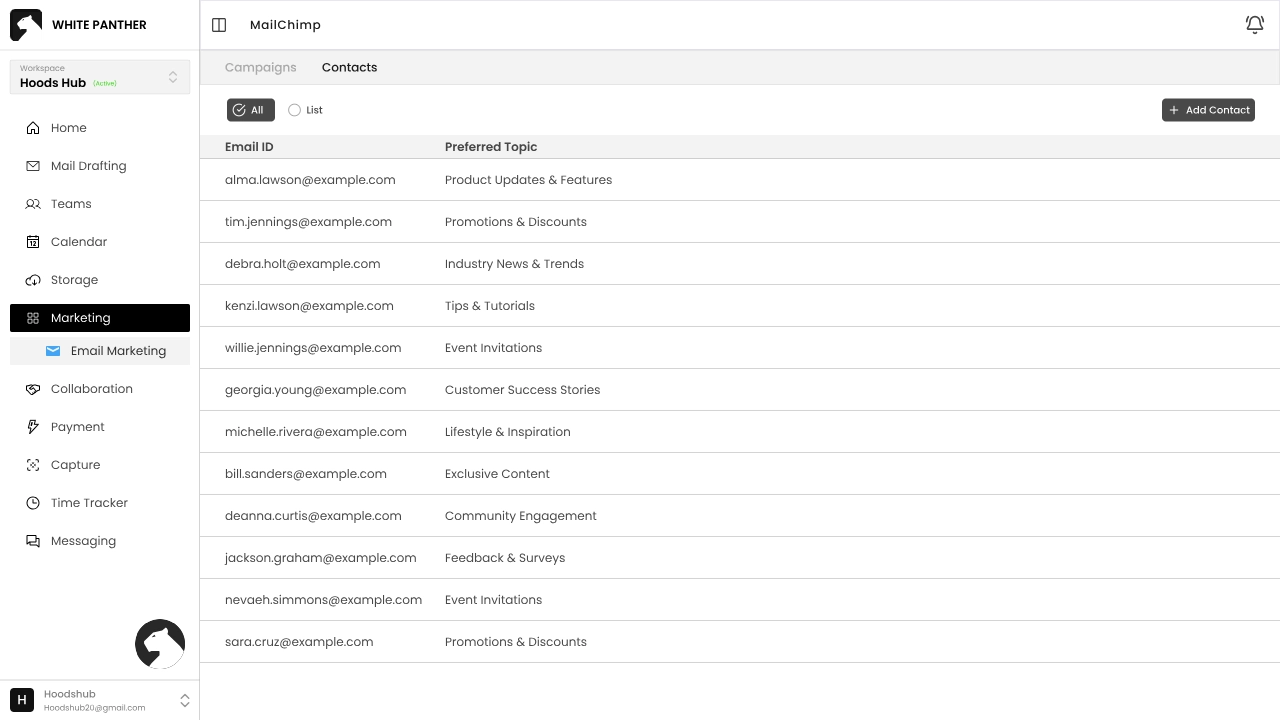
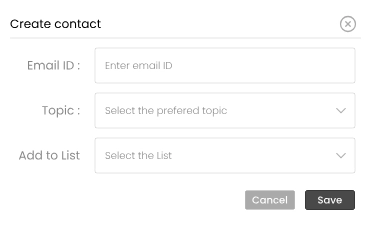
  • All shows every contact with their email and preferred topic. Click Add contact to add someone new. Fill in their email address, select a preferred topic and assign them to a list, then click Save.
  • List allows you to create and manage segmented groups. Each list is a batch of contacts who will receive the same type of campaign (e.g., Event Invitations, Weekly Newsletter).


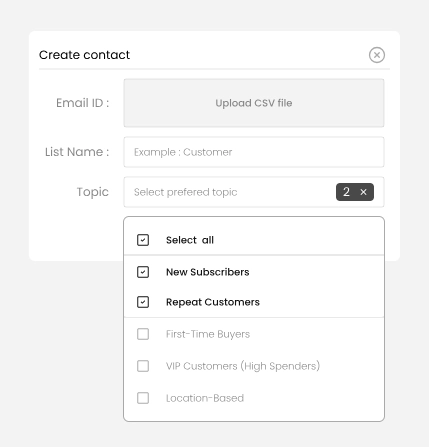
  1. To create a new list, click Create list.


  2. Enter a List name, and upload contacts via CSV or add them manually.
  3. Choose one or more topics that describe the list’s interest (e.g., New Subscribers, Repeat Customers).
  4. Save the list. You can now select it when creating a campaign.


Collaboration

The Collaboration feature integrates Trello boards directly into White Panther so you can manage tasks without switching apps. 

7.1 Connecting Trello 

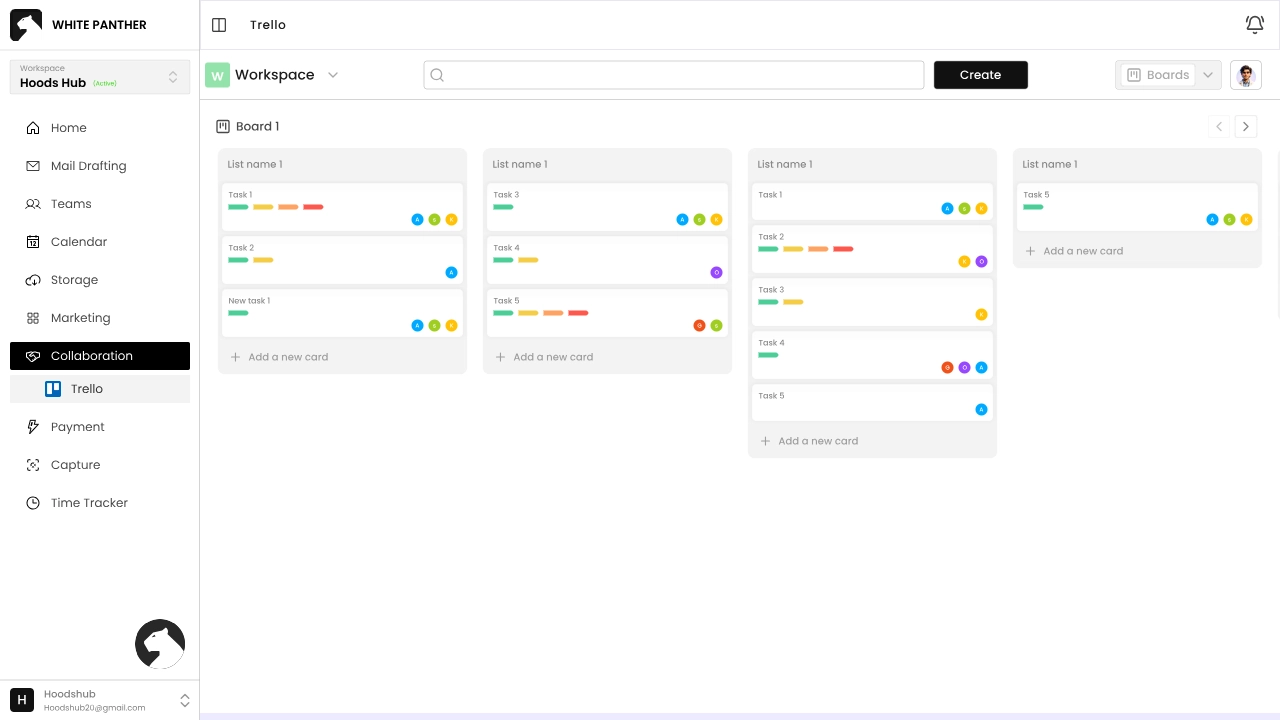
  1. Select “Collaboration” then Trello in the navigation menu.
  2. Follow the OAuth  prompts to log in with your Trello account. Once connected, your workspaces and boards load automatically.

7.2 Using Trello within White Panther


  • Use the dropdown to switch between Trello workspaces.
  • Click a board to open it. Lists and cards display just like in Trello.
  • To add a task, click Add a new card under a list and enter a title.
  • Changes sync instantly with Trello, so you and your teammates always work from the same data, whether in White Panther or the Trello app.

Payments

White Panther includes a Payment module powered by Razorpay for handling invoices, payouts and contact management. 

8.1 Payment Dashboard 
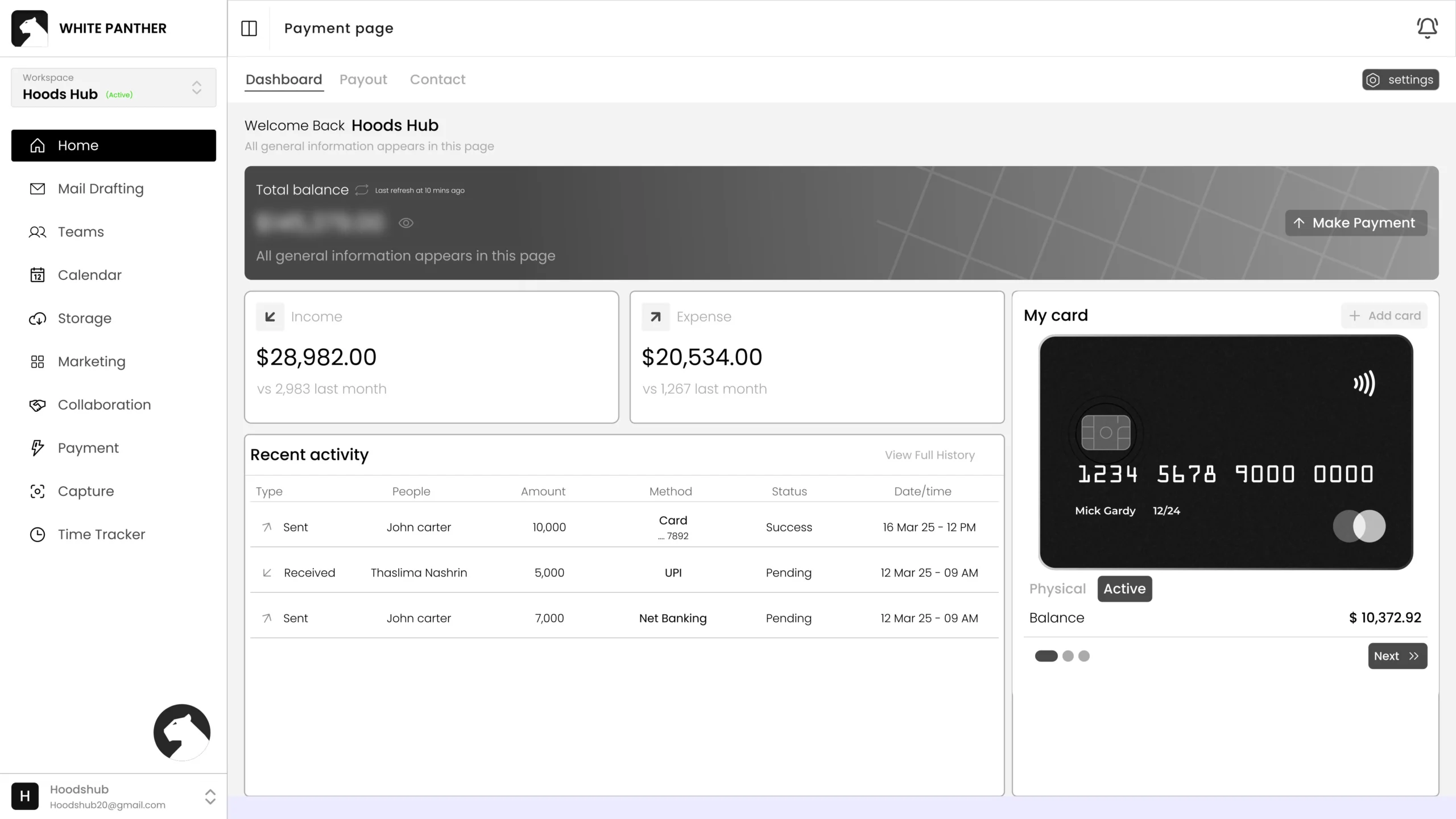
  1. Click “Payment” in the left‑hand menu to open your payment dashboard.
  2. The dashboard shows:
     – Total Balance – combined total of all accounts.
    – Incomes & Expenses – summary of money received and spent.
    – Recent Activity – list of recent transactions with type, method, status, date/time and a Download link for receipts.

     
  3. To initiate a payment, click the Make Payment button above the My Card section. You can send one‑off or bulk payments directly from the dashboard.
     

8.2 Payouts

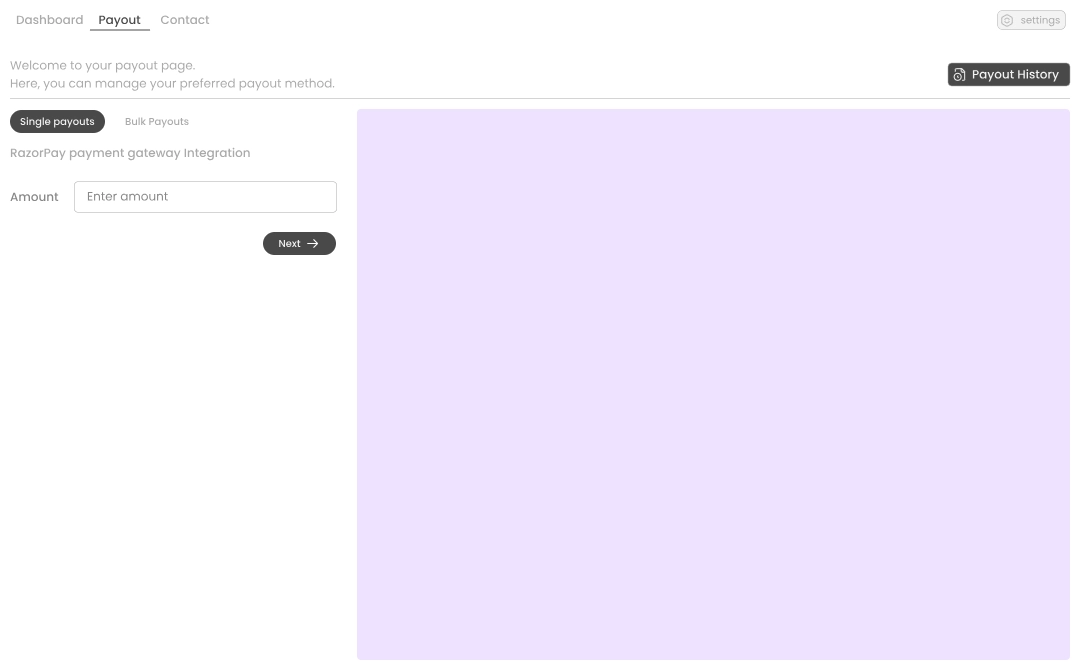
  1. From the Payment module, choose Payout (beside Dashboard).
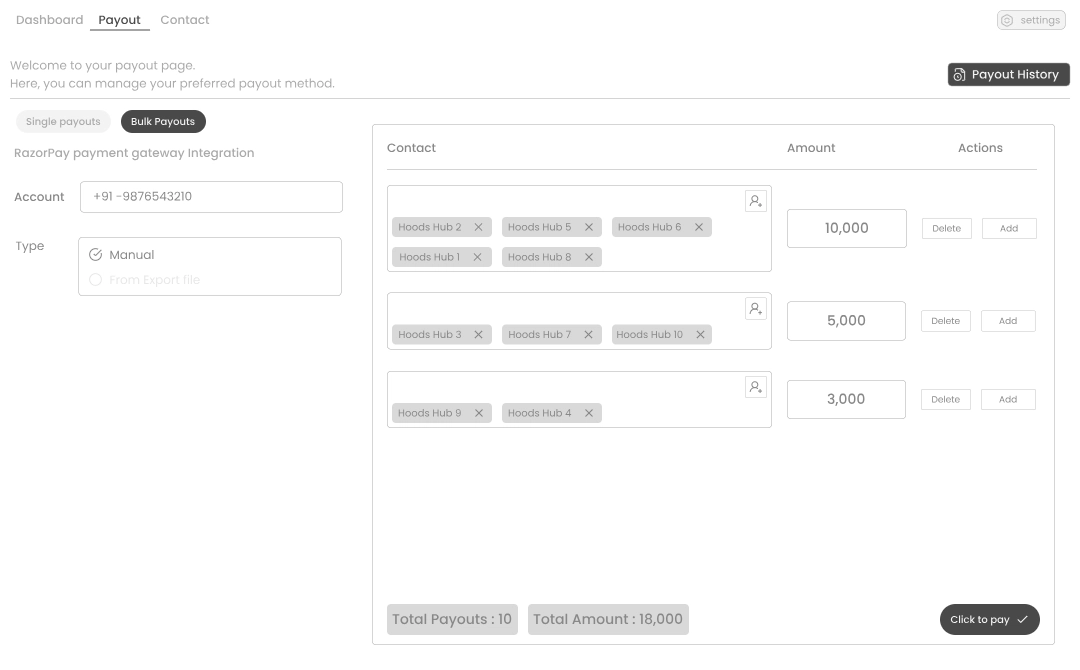
  2. Select Single payout to send one payment or Bulk payouts to pay multiple recipients at once.
  3. For bulk payouts:

  • Choose Manual to input amounts individually or From Excel file to upload a spreadsheet.
  • In the table, assign contacts and amounts for each payout. Use the Add button to add more rows.
  • The summary at the bottom shows Total Payouts and Total Amount.
  • When ready, click Click to pay.
     

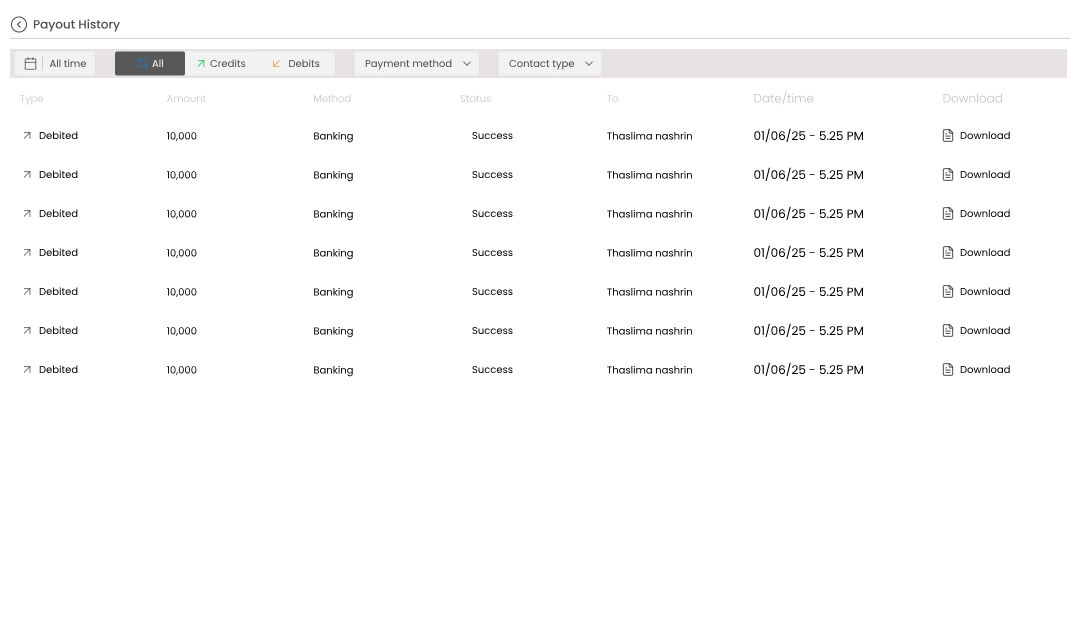
8.3 Payout History

  1. Click Payout History at the top right of the Payout page.
  2. A table lists each transaction with columns for Type (Debited or Credited), Amount, Method, Status, Contact type, Date/Time and a Download link.
  3. Use the quick filters (Affirm, All, Credits) to filter the history.


8.4 Payment Contacts 

White Panther helps you manage payees within the payment module. 
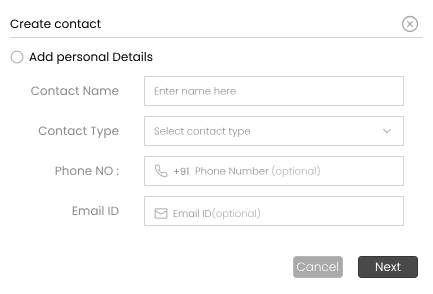
  1. Go to Contact under Payment.
  2. Click New contact (top right).


  3. In the Create contact window, fill in:
    • Contact Name – the recipient’s full name.
    • Contact Type – select whether they are a customer, vendor or employee.
    • Phone Number – optional.
    • Email ID – optional.
  4. Click Next to save the contact. You can now select this contact when making a payout. 


Screen Recording

The Screen Recorder feature allows you to quickly capture your browser tab, window or entire screen – perfect for documenting training, demos or troubleshooting. All recordings are stored within White Panther so you can replay or share them later. 

9.1 Starting a Recording 
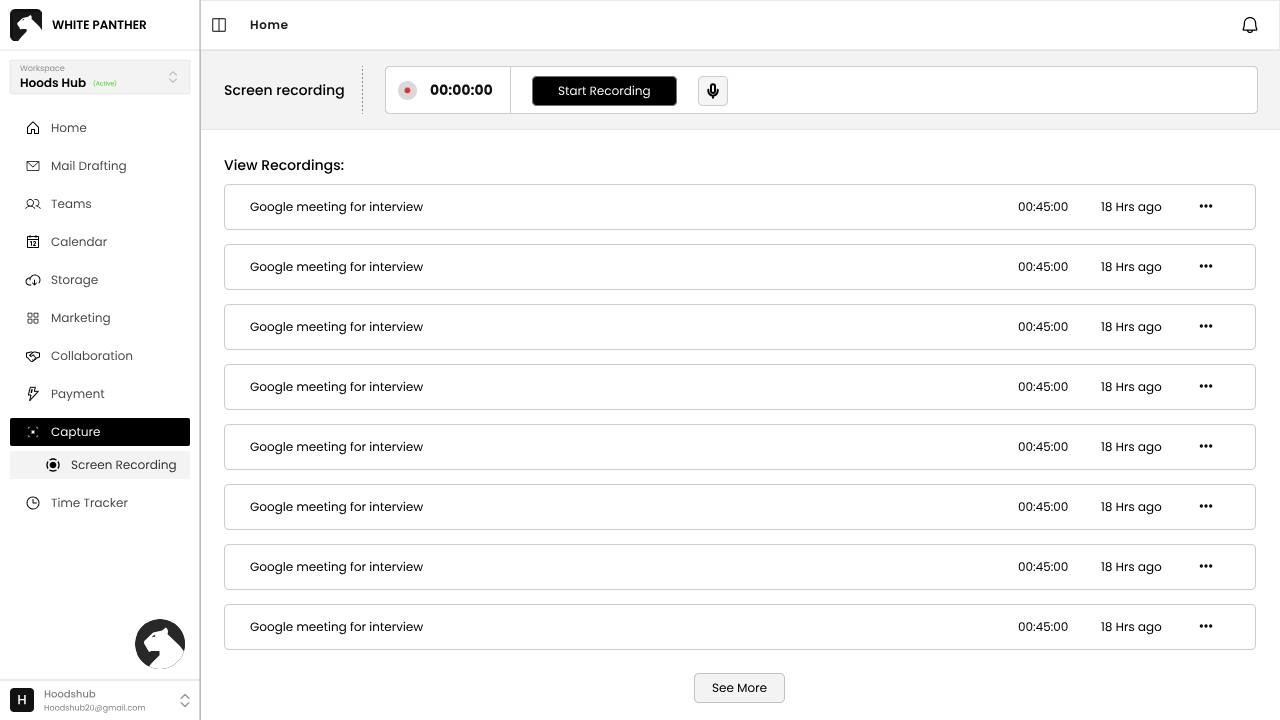
  1. From your dashboard, click “Screen Recorder” in the left‑hand navigation. A timer appears at the top and below it you’ll see a Start Recording button.
     
  2. Before you begin, review your “View Recordings” list. Here you’ll see previous videos along with the title, duration and a menu (three dots) for deleting recordings. To see all recordings, click See more.
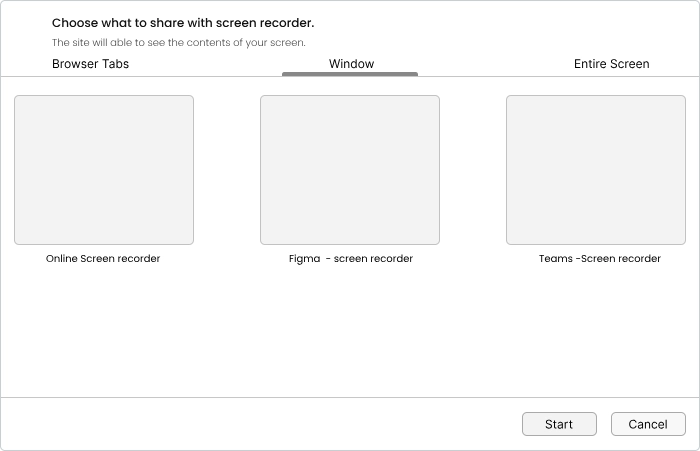
  3. Click Start Recording. A pop‑up titled “Choose what to share with screen recorder” appears with three tabs:


    • “Browser Tabs” displays all open tabs.
    • “Window” shows each open application window (such as Figma or Teams).
    • “Entire Screen” lets you capture everything on your display.
  4. Select the tab or window you want to record. If you need full‑screen capture, choose “Entire Screen”.
  5. Click Start to begin recording. A small timer counts up, letting you know how long you’ve been recording.
  6. To stop, return to the Screen Recorder page and click Stop Recording. Your video automatically saves to the View Recordings list where you can edit, share or remove it via the three‑dot menu.


Time Tracker

White Panther’s Time Tracker helps you log hours spent on tasks and projects, analyse productivity and integrate time data with calendars or project management tools.  

There are Four tabs in this feature:  Dashboard, Project Tracker, Analyze and Settings. 

10.1 Dashboard 
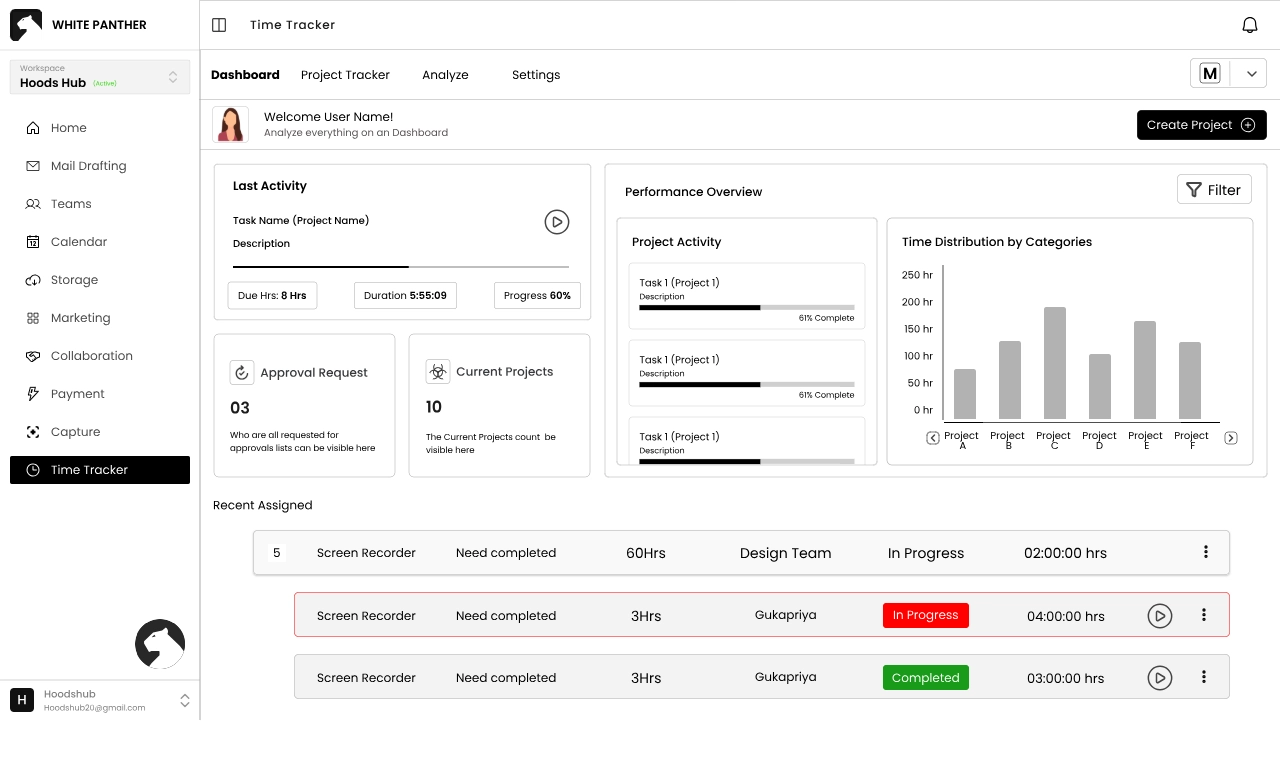
  1. Click “Time Tracker” on the left menu; the Dashboard tab opens by default.
  2. At the top you’ll see summary widgets like Last ActivityPerformance Overview and Time Distribution by Categories. These give you a quick snapshot of where your time is going.
  3. The table below lists each tracked session with details such as task name, status (e.g., In Progress), start and end times and total hours logged.
  4. Use the filter icons or search bar to find specific entries. You can also pause or resume a running timer directly from the table.

10.2 Project Tracker 

The Project Tracker view lets you organise tasks under projects and start timers for each.
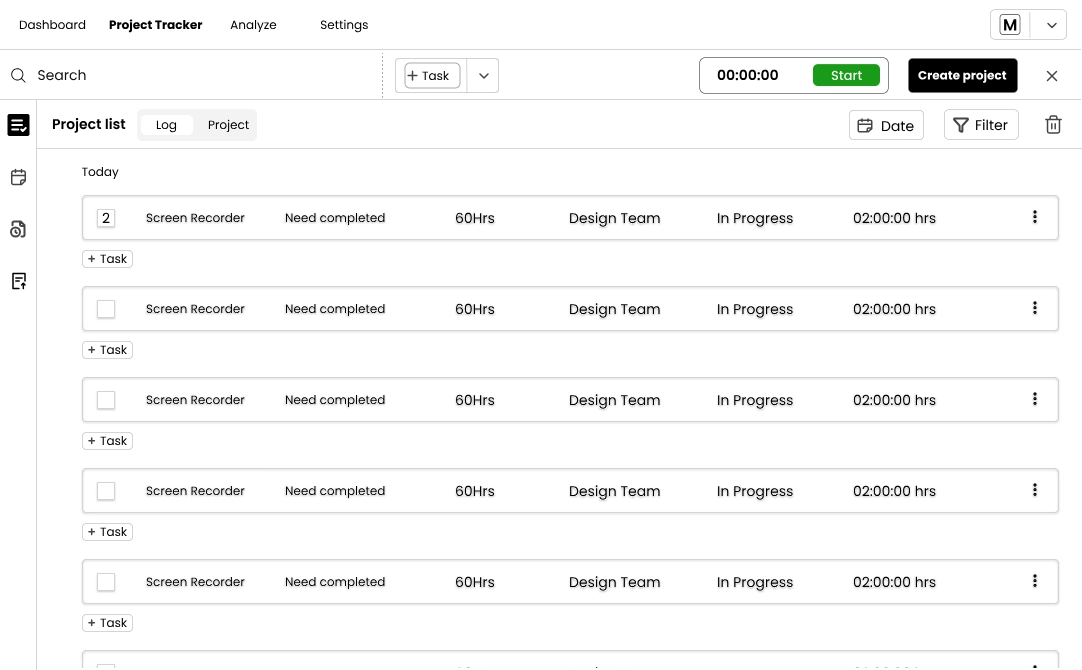
  1. At the top, there’s a search bar and three key buttons:
    • “+ Task” – creates a new task without starting a timer.
    • The Start button on the timer – begins tracking time on the selected task.
    • “Create project” – opens a form to define a new project
  2. Below these options is a list of projects with columns for completed hours, team assignment, status and total logged time.
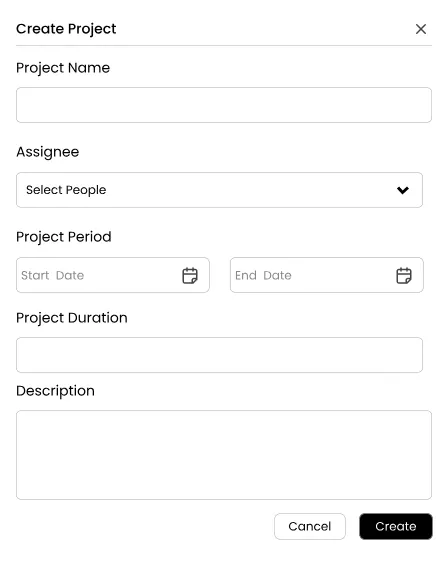
  3. To create a project, click Create project and fill out: 

    • “Project Name” – what you’re working on.
    • “Assignee” – choose team members or yourself.
    • “Project Period” – select start and end dates.
    • “Project Duration” – define the estimated total hours.
    • “Description” – add notes or goals.
      Click Create to save your project.
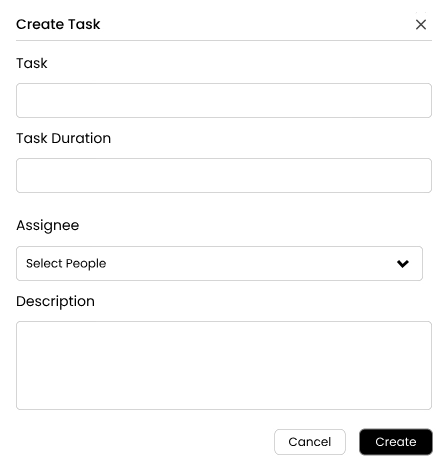
  4. To create a task, select + Task and complete the TaskTask DurationAssignee and Description fields. Click Create. Tasks appear in the list where you can start/stop timers or mark them completed.


10.3 Time Logs & Calendar View 

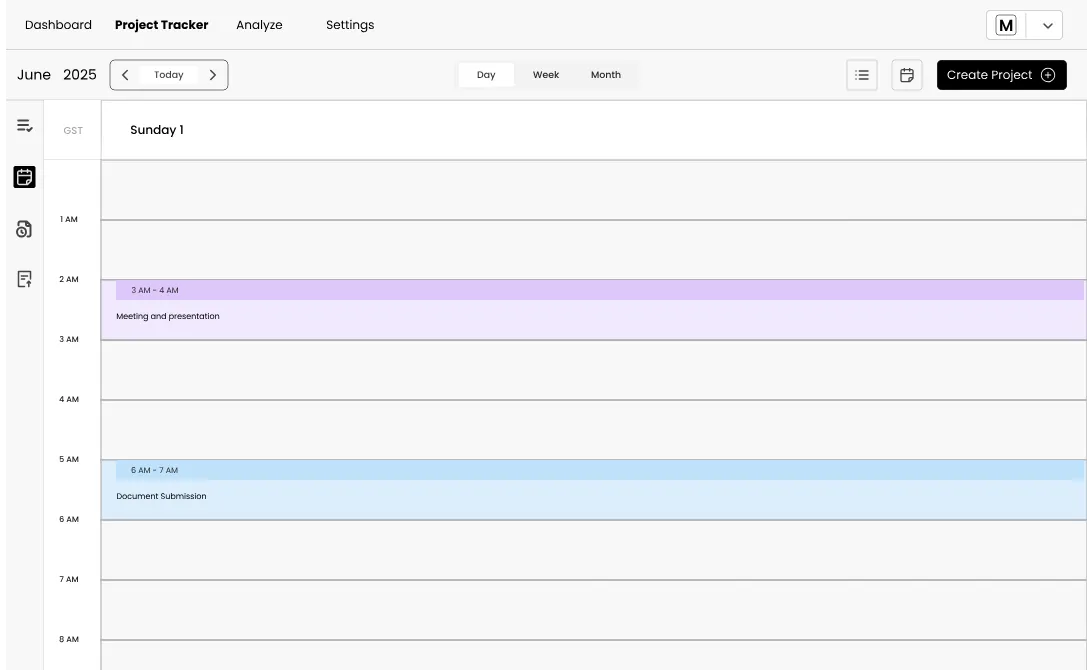
  1. In the left sidebar of Project Tracker you’ll see navigation to the calendar viewtime logs and timesheets.
  2. Open the Calendar view to see tasks plotted across days. You can switch between weekly or monthly layouts.
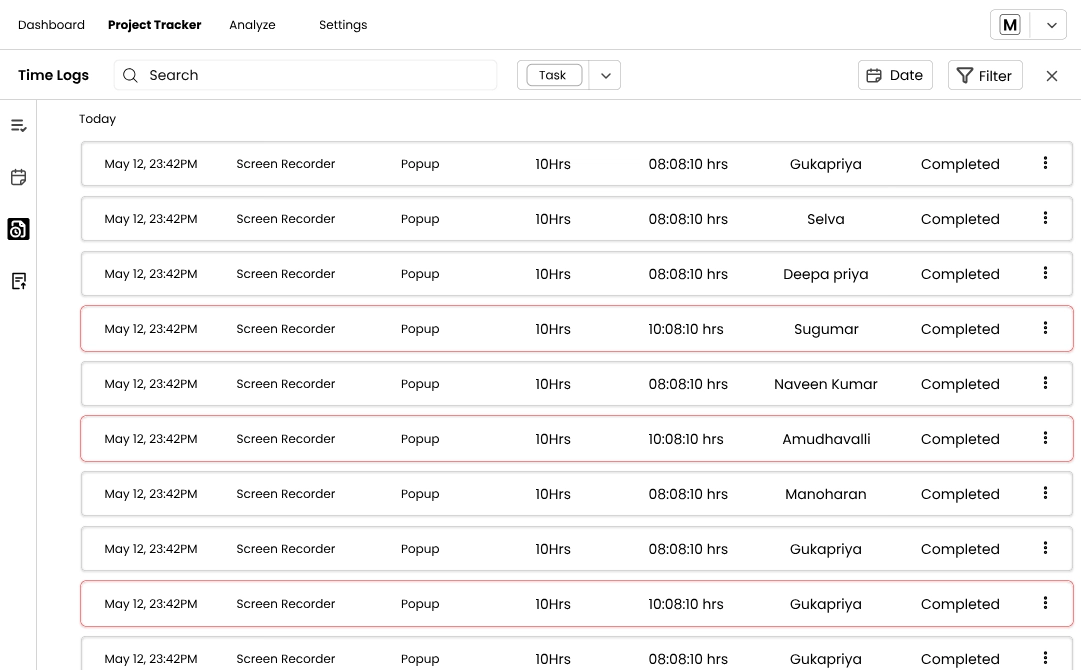
  3. Also, there is a Time Logs table showing each entry’s date, task name, category (e.g., Popup), hours logged, assigned team and status (Completed or Pending). Use the filter and date selectors to narrow down entries.
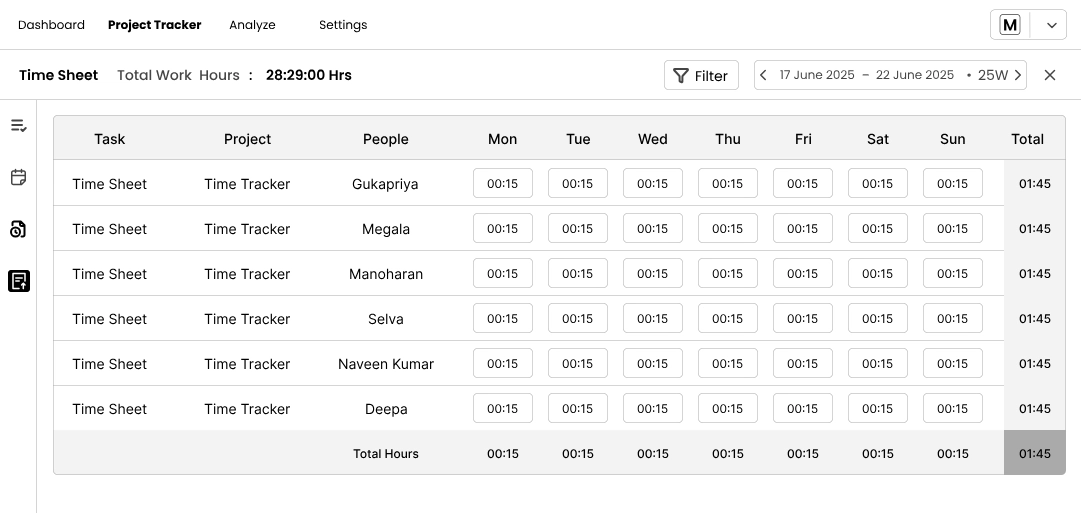
  4. The Timesheet section provides a weekly grid of hours worked per person across each day. At the top right, you can filter by date range.


10.4 Analyze 

The Analyze tab summarises your team’s productivity, logged hours and approval statuses. 
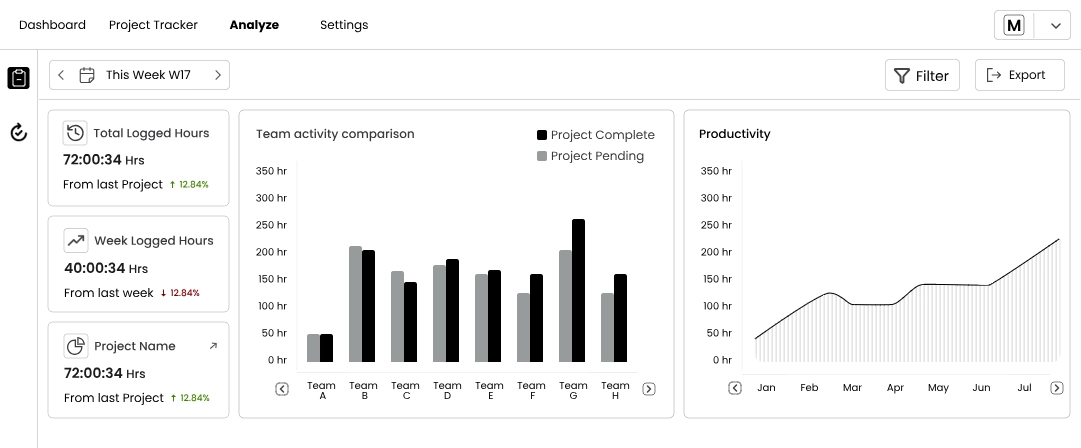
  1. You’ll see metrics like Total Logged HoursWeek Logged Hours and hours by Project Name.
  2. A bar chart titled Team activity comparison compares Project Complete versus Project Pending across your teams, while the Productivity line graph charts hours month‑by‑month.
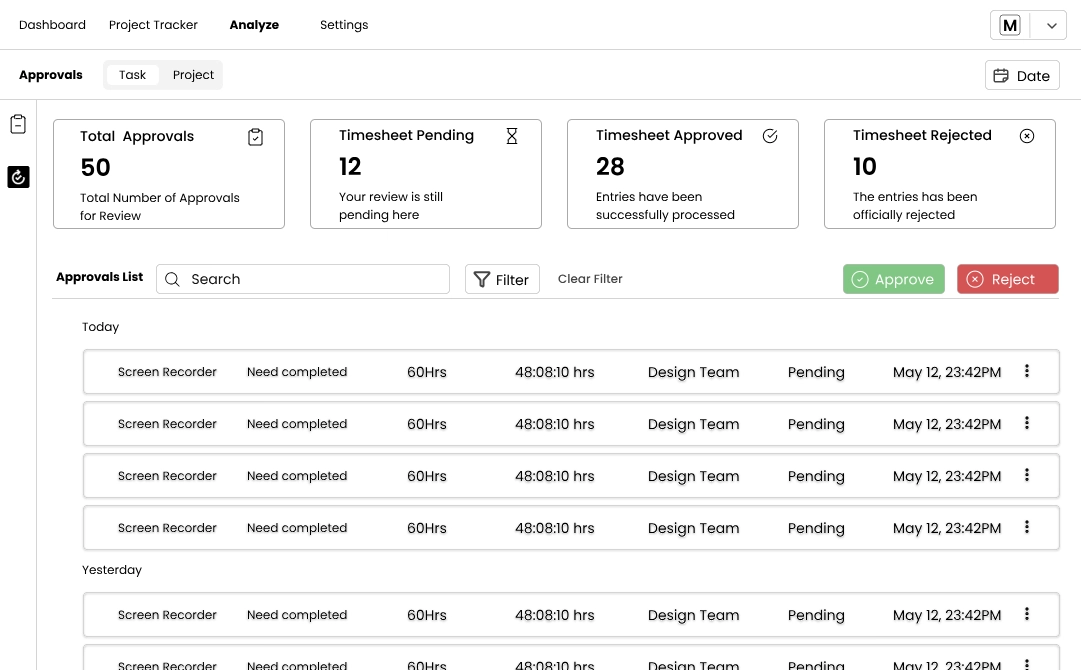
  3. Also, there is a Approvals panel.
  4. Here you can see summary cards show counts for Total ApprovalsTimesheet PendingTimesheet Approved and Timesheet Rejected.
  5. The Approvals List table lists pending entries. You can select one or more rows and click Approve or Reject
  6. Also, you can use the SearchFilter or Date buttons to refine the list. You can also view details or edit entries via the menu on each row.
     

10.5 Settings 

Customise how your time tracker behaves from the Settings tab. 
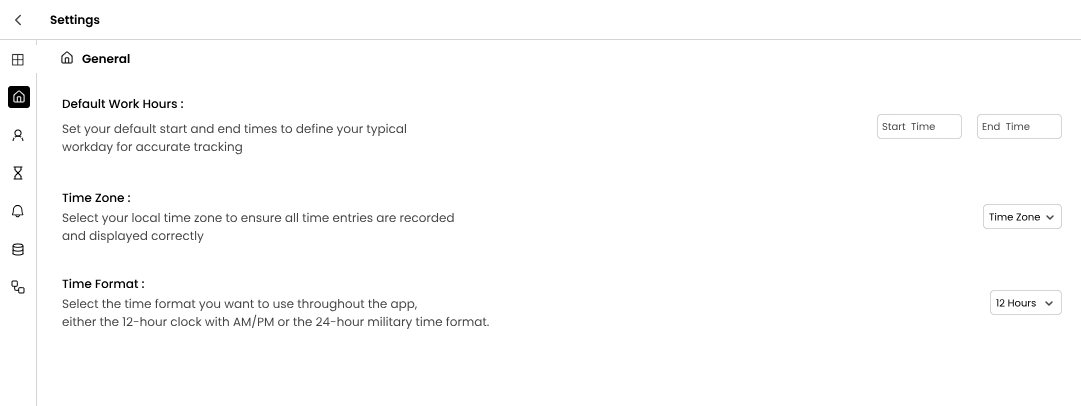
  1. General – Set Default Work Hours, choose your Time Zone and decide between a 12‑hour or 24‑hour time format.
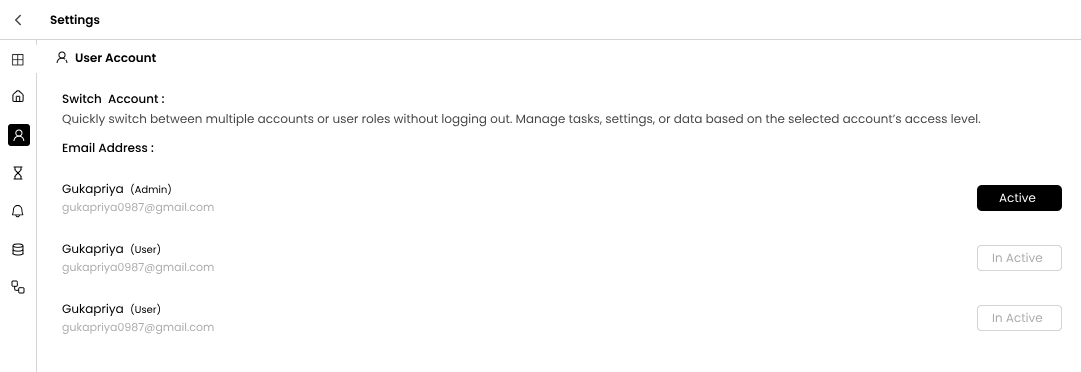
  2. User Account – Quickly switch between multiple accounts or user roles. Active and inactive email addresses are listed with toggles to control which account you’re using.
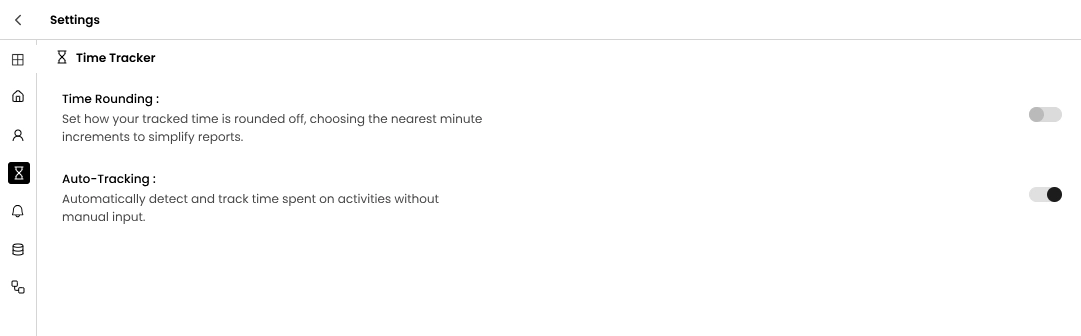
  3. Time Tracker Options – Toggle Time Rounding (round entries to the nearest minute) or enable Auto‑Tracking to automatically start the timer when you begin an activity.
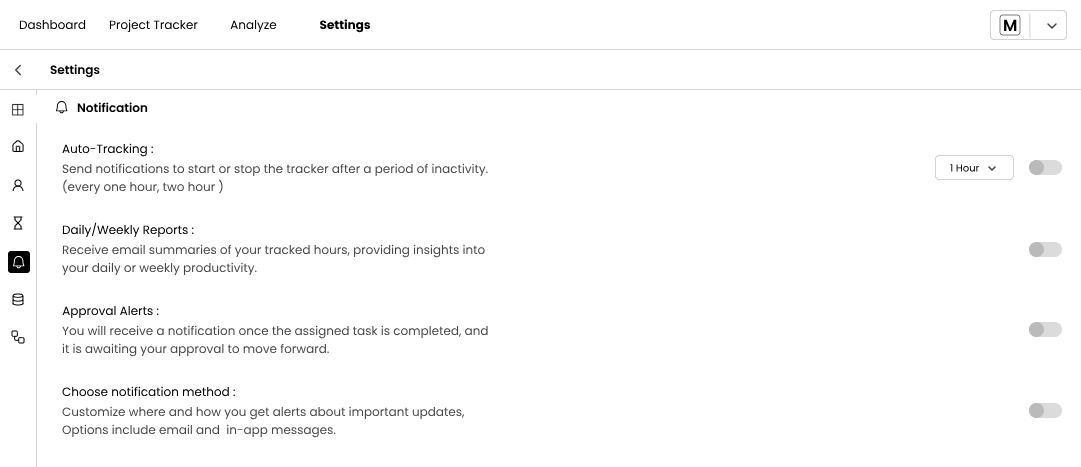
  4. Notification – Configure alerts:
    • Auto‑tracking notifications prompt you to start or stop timers after inactivity (choose a timeframe from the dropdown).
    • Daily/Weekly Reports send you summaries of logged hours.
    • Approval Alerts inform you when a task awaiting your approval is completed.
    • Use Choose notification method to decide whether updates arrive via email or in‑app messages.

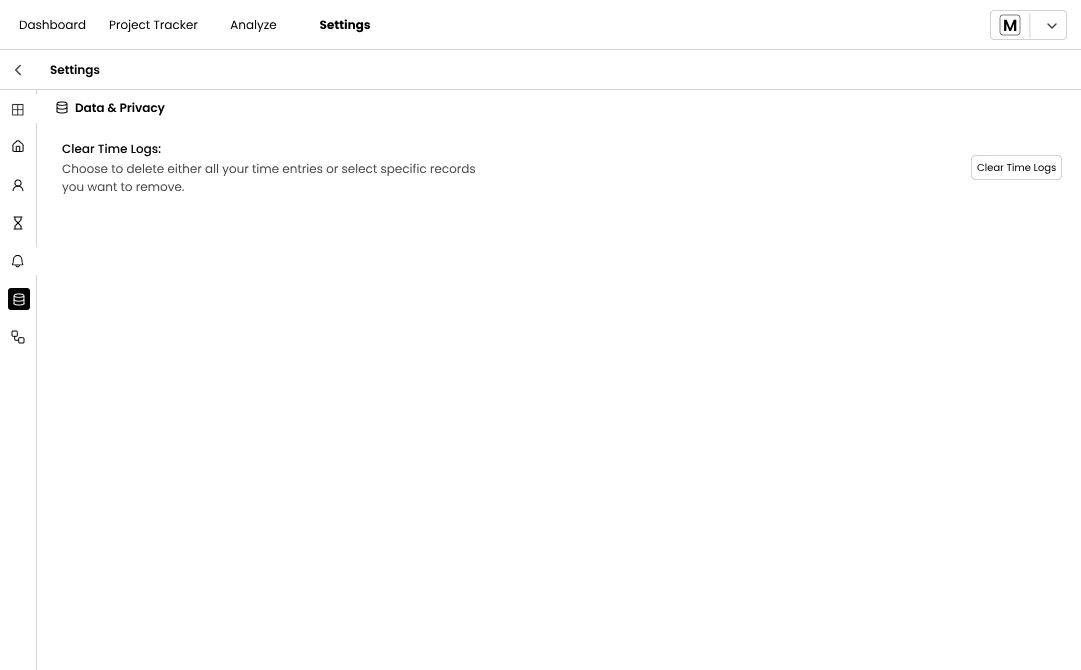
  5. Data & Privacy – Click Clear Time Logs to remove either all entries or selected records.
     
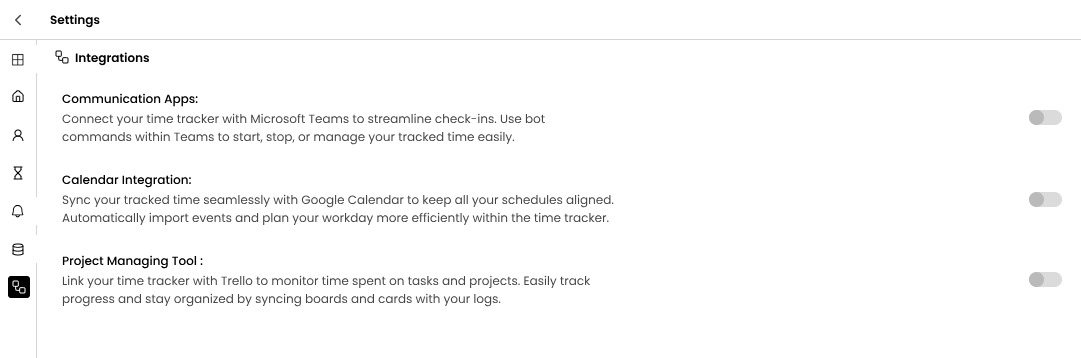
  6. Integrations – Enable connections to boost efficiency:
    • Communication Apps – integrate with WhitePanther’s custom chat module to start and stop timers using bot commands.
    • Calendar Integration – sync your tracked time with Google Calendar, importing events and reminders.
    • Project Management Tool – link Trello boards so you can monitor time spent on cards and tasks directly within the tracker.


JOIN BETA